Welcome to the Help & Support Center
We encourage you to go through the process, instructions, and requirements carefully.
Accenture Virtual Recruitment Process
Career Levels
-
This year we are looking forward to offering you to join us in one of the following roles:
- Associate Software Engineer (ASE) at Career level 12
- Software Engineer (SE) at Career Level 11
-
The positions will be offered based on your overall performance during the process
-
You will be notified on you selection only at end of our zonal process, unless you fail to clear or participate in any of our recruitment process.
Registration
-
Please fill the registration carefully & accurately
-
Your registration details will be considered to determine your eligibility
Assessments
-
If you are eligible, you will receive an email invitation to attend online assessments
-
The assessment is scheduled in two stages, and must be completed within the scheduled time
-
You will attend upto three assessments:
- Cognitive and Technical Assessment - Duration 90 minutes
- Coding Assessment - Duration 45 minutes (You will get this test only if you clear Assessment 1)
- Communication Assessment - Duration 20 minutes (You will get this test only if you clear Assessment 1)
-
Your performance in the three assessments will be considered for shortlisting for the interview stage
Interviews
-
If you are shortlisted, you will receive an email to select a preferred slot for your interview
-
Once you have selected your slot, you will receive an email with the interview access details
-
On the day of the interview, you will be interviewed by two panelists from Accenture.
-
Duration of the interview will be approximately 30 minutes
-
Don?t forget to carry the admit card for participating during our interview process.
-
Note: The information on the admit card and government ID proof will be verified.
Letter of Intent
-
If you clear the Interview round, you will be considered for selection
-
Once we complete all processes in your zone, we will select candidates for ASE or SE role
-
If selected, we will send you a Letter of Intent for the appropriate role
Note
-
Candidates who fail to participate or are found to be involved in any fraudulent or misrepresentation acts in any of the stages across the process will be disqualified from the recruitment process.
Registration Process Details
Registration Process
-
Please fill the registration form carefully & accurately.
-
Note: You will not be able to make any changes once you have submitted your registration form.
-
Your registration details will be considered to determine your eligibility.
Things to do before the registration
-
Please make sure to have a digital copy of Passport Size Photo ready with you.
-
Please make sure to have a scanned copy of your PAN Card ready with you.
-
Please make sure to have the latest copy of your Resume ready with you.
Detailed Guide to fill the Registration Form
Guide to Fill Personal Details
| First Name | Mention your name (given name) as per PAN card/ Government ID Card. Tool will not consider single alphabet as a name. |
| Middle Name | Mention your middle name, if any. Expand initials in your middle name, if any. |
| Last Name | Mention your last name( sur name) as per PAN Card/ Government ID Card. In the absence of a last name, mention your Father or Mother's name as specified on your PAN card/ Government ID Card. Tool will not consider single alphabet as a name. |
| Contact Email ID | Mention your personal email ID which will be used for all communications. Refrain from using college domain email ID. No changes will be permitted post submission till onboarding. |
| Primary Contact Number | Enter your personal contact number which will be used for all communications. No changes will be permitted post submission till onboarding. |
| Date of Birth. | Select the correct Date/Month/Year (DD/MM/YYYY) from the calendar dropdown. |
| Gender | Please select your gender by clicking on the appropriate radio button. |
Guide to Fill Current Address & Permanent Address
| Address Line | Provide complete address details, including house number, building name, street name, and locality. |
| Pincode | Enter the 6-digit postal code of your area to ensure accurate location identification. |
| City | Enter the name of the city or town associated with your address. |
| State | Enter the full name of the state corresponding to the provided city and pincode. |
Guide to Fill Educational Details
| Education Type | You have to choose your education type from the drop down. Select the option available. |
| Degree | Please choose the correct option available in the drop down. |
| College | Please choose the correct option available in the drop down. |
| Specialization | Select your Specialization from the dropdown as per your marksheet. |
| Year of Passing | Please choose the correct option available in the drop down. |
| Percentage / CGPA | Mention cumulative aggregate percentage or CGPA as per your mark sheet for all available semesters. |
| CGPA Out Of | If you choose CGPA, please provide the full scale (e.g., out of 4, 10, etc.) in the designated input box |
Guide to Fill Github Link Details
| Github Link | Please provide your Github profile url details. Example: https://github.com/yournam |
Guide to Fill Internship Details/Work Profile
| General Information | Please enter your internship/Work Profile details in chronological order, starting from the most recent. |
| Company | Please select the appropriate company from the dropdown list. If the company you're looking for isn't listed, choose 'Others' and provide the details. |
| Sector | Please select the sector you have worked in from the dropdown menu. |
| Designation | Please select the designation from the dropdown list. |
| From Date | Kindly enter the start date of your internship/Work Profile |
| To Date | Kindly enter the end date of your internship/Work Profile |
| Add More | To add details for multiple internships/ Work Profile, please click on 'Add More' button and fill the details. |
| Internship Project Details | Please provide detailed information about the projects you worked on during your internships. For each project, include the project title, duration, organization name, your role, the technologies or tools used, and the outcomes or contributions you made. If you have worked on multiple internship projects then fill the details for each one seperately. |
Guide to Fill Certification Details
| General Information | If you have completed multiple Certifications, click on "Add More" to enter additional certificate details. To delete an entry, click on "Remove." |
| Certification | Please select an option from the dropdown list. If the option you're looking for is not available, choose 'Others' and provide the necessary details. |
| Certification Status | Please select the Certification Status from the dropdown menu. |
| Certification Institution | Please select the Certification Institution from the dropdown menu. |
| No Of Attempts | Please enter number of attempts |
| Attach Your Certificate here | Upload your certificate by selecting 'Choose File'. Ensure the file is in PDF, JPG, JPEG, or PNG format and does not exceed 3 MB. |
Guide to Fill Additional Details
| Do you have any standing backlogs | Select option from the dropdown if you have any active backlog |
| Do you have any gap in education? | Select option from the dropdown if you have any gap in education. |
| If yes, kindly specify the duration of gap. | In case of any gap, select the corresponding duration from the dropdown menu. |
| Highlight your key academic achievements | You can list your most important and impressive accomplishments related to your education. |
| Highlight your key non-academic achievements | You can list the most important accomplishments in skills, interests, leadership, creativity, or community involvement. |
| Please mention ranks/positions achieved in any competitive platform | You can list any official rankings, positions, or placements you've earned in competitions or contests such as Coding competitions (e.g., Codeforces, LeetCode, HackerRank),Hackathons,etc. |
Guide to Fill Other Details
| Gap in Education | Select from the dropdown in case you have more than a year gap (in a consecutive timeline) in your education from 10th standard till graduation (B.E/ B.Tech/ MCA). |
| Reason for Gap in Education | Select appropriate reasons from the drop down if you have more than 1 year of gap in your education. |
| Standing Backlog | Select option from the dropdown if you have any active backlog or awaiting your results. |
Guide to Upload Attachments
| Resume | Upload your resume in any one of the following formats .doc / .docx/ .pdf within a file size of 1 MB. |
| Passport Size Photograph | Upload your passport size colored photo no older than 2 months within a file size of 3MB. Your face should be bright and clearly visible. There should be no one else in the photo. Refrain from attaching selfies or cropped images. Please upload a photo with a plain colour background (preferably White/Blue/Red). Make sure that the photo is not upside down. |
 |
|
| Government Photo ID Type | PAN card is the preferred Government photo ID card. You must select the option 'PAN card' if you have a PAN Card or else you must select the option for 'Another ID card'. |
| Government ID Type | Select the option PAN card from the drop down and proceed to upload. |
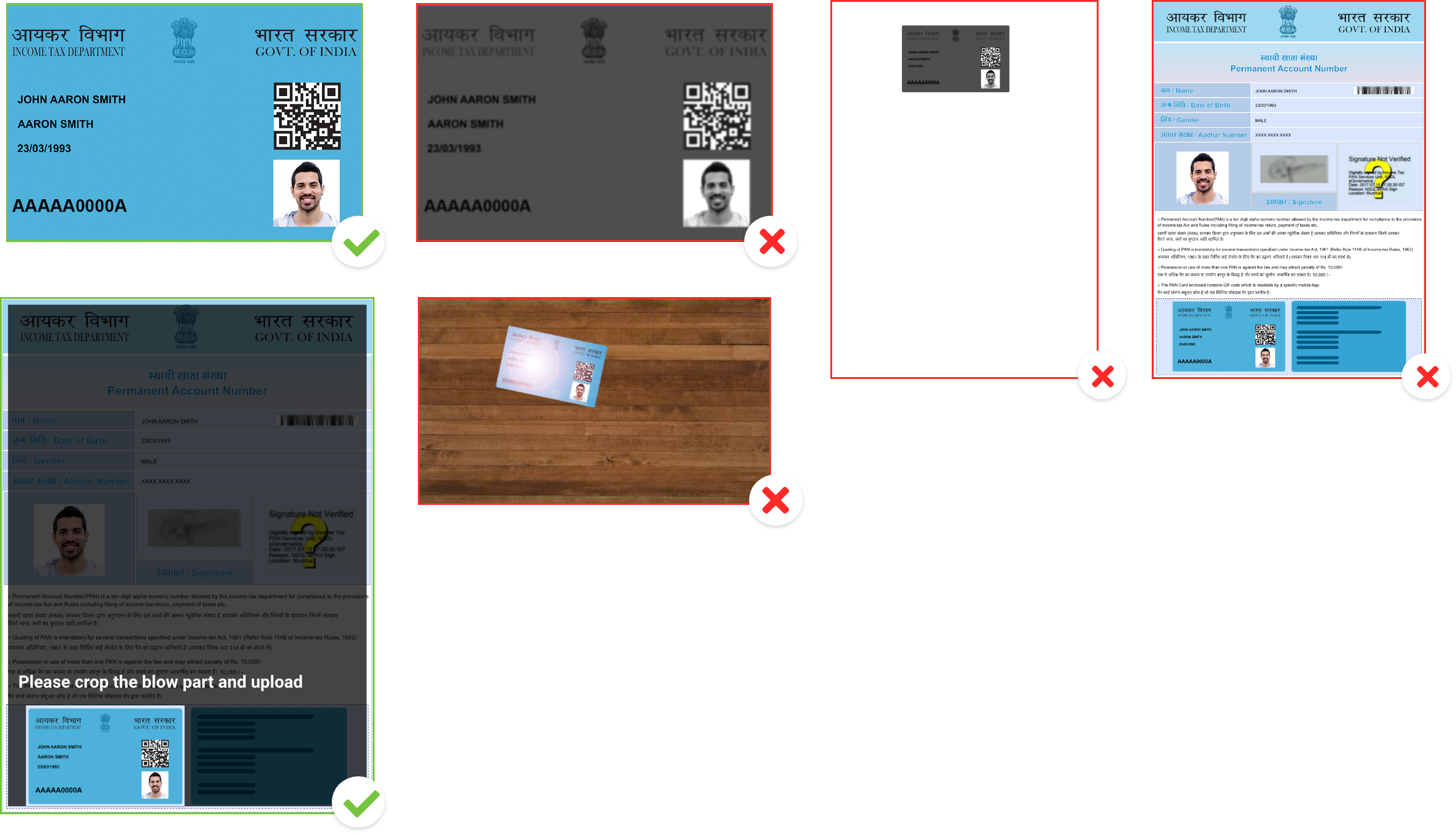
| Government ID Card | Upload your colored PAN card copy within a file size of 3 MB. Please make sure to CROP & UPLOAD only the PAN Card image, if you have an ePAN Card You can upload a minor PAN card . Click on "SUBMIT ANYWAYS" in case of system warning because of your photo mismatch. If your name is spelt incorrectly in your PAN card. You can proceed to upload by clicking on "SUBMIT ANYWAYS" even if you are getting system warning for your name mismatch. Upload the full PAN card image, without any background. Do NOT upload a poor quality photocopy. Do NOT upload a copy with the glare of camera flash. Do NOT upload PAN Application Form, or PAN Card Issued to you as a minor, or Parent's/Guardian's PAN Card. The PAN number that is updated in the personal details section should match with your uploaded PAN card, without which the tool will not allow you to submit your application. |
 |
|
| PAN Number | Provide a valid PAN card number. Ensure the details entered are accurate as no changes will be permitted post submission. Tool will not consider any special characters. Do NOT enter PAN Application Number, or Parent/Guardian PAN number. |
Guide to fill MyCareernet Consent
| This section lets you choose if you want to receive updates about this and future opportunities. | |
| What it means: | I consent – You agree to get updates and alerts. I do not consent – You won't receive any communication. |
| What to do: | Select the option that matches your preference. |
Guide to fill Declaration & Consent
| Declaration | Go through the declaration and consent section in detail. Agree to the given terms and condition for each section. |
Guide to Submit
| Captcha | Please complete the captcha verification before submitting. |
| Submit | Once you click the submit button, you will see a pop up on your screen asking you to review the details you submitted. Double check the accuracy of the information provided and confirm your application by clicking on submit button. |
Guide to Errors & Warnings
| Mandatory fields | You will get an error message if you have not filled all the mandatory fields. Please make sure to fill all the mandatory fields. |
| Upload Attachments | You will get an error message if you upload the attachments in the invalid format or size. Please make sure to upload the attachments in the allowed format and size. |
| Invalid Passport Size Photo | You will get an error message if your Passport Size Photo is either unclear, or is missing a face, or has too many faces. Please make sure to upload a clear passport size photo with only your face in the picture. |
| Mismatching Information | You will get a warning message if there is a mismatch between your submitted information and Government ID card. Please make sure that all information is matching. |
Assessment Details
How to prepare for the test
To take an online proctored test, you must have the following:
Prepare your computer
| Machine | Only use Laptop/Desktop DO NOT use Mobile/Tablet |
| Operating system | Windows 8 or 10 Mac OS X 10.9 Mavericks or Higher |
| Video & Audio | Webcam is mandatory Good Quality Mic is mandatory |
| RAM | 4 GB or More |
| Processor | i3 5th Generation 2.2Ghz or equivalent/higher |
| Browser | Only Google Chrome version 80 & above No Beta versions |
| Cookies & Popups | Cookies need to be enabled Popups need to be enabled |
| Internet Connection | You must have a stable 300 kbps of Upload & Download speed. Please try using Broadband. Avoid using unstable 3G/4G Networks |
Check if your computer is compatible
Before you start the test, you can check the system compatibility using this link: https://inapp.hirepro.ai/testcompatibility/check.html
Things to do right before the test
Select the right surroundings
-
Make sure you are in a quiet room
-
Make sure that no one else is present in the room
-
Make sure that your phone is away and on silent mode
Ensure that your hardware is setup
-
Make sure that your laptop/desktop is connected to the power supply and/or UPS
-
Make sure that you have a stable Internet connection of 2Mbps+.
-
Try to use a broadband connection. Avoid unstable 3G/4G networks.
-
Restart your Modem, Wifi Router, Hotspot
-
Make sure that your face is well-lit and clearly visible in the camera
-
Make sure that you are using a good quality wired headset with microphone for the test
Ensure that your operating system is setup
-
Disable your screensaver, screen auto-lock, and display auto-sleep
-
Disable anti-virus popups, and any other system popups
Things to do during the test
-
Please make sure that you complete the test in a single go
-
Please do not take breaks during the test
-
Please make sure you are always visible in the camera throughout the test
-
Please make sure you are not taking any external help throughout the test
Common issues faced during the test
I get an error saying "System Clock Out of Sync"
This error occurs if your machine does not have the correct date & time set.
Please set the correct date & time using your operating system settings/preferences.
I get an error saying "Device not Compatible"
This error occurs if you are using a mobile or a tablet.
Please make sure that you take the test from a laptop or a desktop.
I get an error saying "Your Internet Connection is too slow"
This error occurs if you don't have sufficient upload and download speed
- Please try using the broadband. Please avoid using unstable 3G/4G connections.
- If you are using a broadband, please try restarting your router and modem.
- If you only have a 3G/4G connection, please ensure that 3G/4G signal is strong and stable.
- If your connection is poor, please try arranging for an alternative connection
- If you are unable to fix the issue immediately, please try taking the test at a later time.
I get an error saying "Your system is too slow"
This error occurs if your RAM or Processor speed is too slow, and/or if you have too many other applications open.
Please close all other applications, and restart your system. If you still see the error, then please upgrade to a faster machine.
| RAM | 4 GB or More |
| Processor | i3 5th Generation 2.2Ghz or equivalent/higher |
I get an error saying "Browser not compatible"
This error occurs if you are not using a supported version of Google Chrome.
Please ensure you are using one of the latest five stable versions of the Google Chrome browser. Beta versions are not supported. You can download the latest stable version from the official Chrome website
I get an error saying "Camera/Microphone not available"
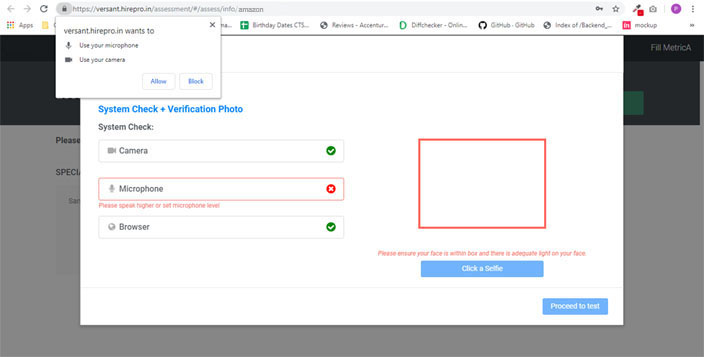
Please make sure that your Webcam & Microphone are connected properly, Also make sure that you allow access to your camera & mic as shown below.
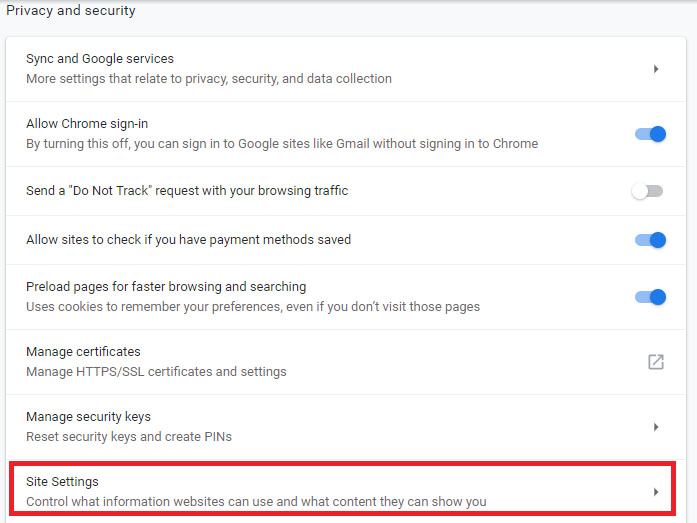
I accidentally blocked access to my Camera and Microphone
Go to: Chrome -> Settings -> Advanced Settings -> Privacy & Security-> Site Settings ->
I get an error saying "Please make sure you are visible in the camera"
This error occurs if the camera is not able to see your face. Since it is a proctored test, you are required to be in front of camera throughout the test.
Interview Process Details
System Requirements for Interview
| Machine | Only use Laptop/Desktop DO NOT use Mobile/Tablet |
| Operating system | Windows 8 or 10 Mac OS X 10.9 Mavericks or Higher |
| Video & Audio | Webcam & Mic is mandatory For Communication Assessment:
|
| RAM | 4 GB or More |
| Processor | i3 5th Generation 2.2Ghz or equivalent/higher |
| Browser | Only Google Chrome version 80 & above No Beta versions |
| Cookies & Popups | Cookies need to be enabled Popups need to be enabled |
| Internet Connection | You must have a stable 500 kbps of Upload & Download speed. Please try using Broadband. Avoid using unstable 3G/4G Networks |
Things to do before the Interview
Prepare your environment
-
Make sure you are in a quiet room
-
Make sure that no one else is present in the room
-
Make sure that your phone is away and on silent
-
Make sure that your face is well-lit and clearly visible in the camera
Prepare your hardware
-
Make sure you have a system that matches the system requirements
-
Make sure that your laptop/desktop is connected to the power supply and/or UPS
-
Make sure that you have a stable 500 kbps of Upload & Download speed.
-
Restart your Modem, WIFI Router, Hotspot
-
For communication assessment, make sure to use a good quality wired headset with mic
Prepare your software
-
Ensure that your operating system is setup
-
Disable your screensaver, screen auto-lock, and display auto-sleep
-
Disable anti-virus popups, and any other system popups
Interview Process
-
If you are shortlisted, you will be receive an email to select a preferred slot for your interview
-
Once you have selected your slot, you will receive an email with the interview access details
-
On the day of the interview, you will be interviewed by two panelists from Accenture.
-
Duration of the interview will be approximately 30 minutes
-
Don?t forget to carry the admit card for participating during our interview process.
-
Note: The information on the admit card and government ID proof will be verified.
All the hiring rounds of our process will end here!